
Product Enhancements
Suppressions (Transaction Monitoring Rule Suppression)
We are introducing Suppressions - a new capability that gives risk and operations teams greater control over Transaction Monitoring (TM) rule behaviour.
What It Does
Suppressions allow a Transaction type rule to be temporarily silenced for a configured period after
it first triggers for an account.
During the suppression window:
-
The rule continues to evaluate and record results in the background - no audit data is lost
- The rule's score is excluded from the Unified Score, preventing repeat triggers for the same
event - Suppressed rules are clearly flagged in the platform UI
- The journey webhook payload is updated to include a suppression indicator for
downstream systems
Key Details
-
Scope: Account-level; each account has its own independent suppression window
-
Rule types supported: Transaction-type rules only
-
One suppression per rule: A rule can only belong to one suppression policy at a time
Permissions
Creating and managing suppressions requires Manage permission on the new Suppressions
permission level. Viewing suppression indicators is available to all standard platform users.
Important Note: Suppressing a rule means its score will not contribute to the Unified Score for a
Journey run during the suppression window. This may result in some transactions not being
referred or being referred at a lower risk level.
How Suppression works – step by step
Step 1: Suppression is Created and Assigned
A user with permissions creates a Suppression policy in the platform within the Suppression edit page. The configuration defines:
-
A name and description
-
Suppression type (ON_TRIGGER) (on by default)
-
Duration and unit (e.g., 5 days)
-
Target type (Account) (on by default)
The user is then able to assign 1 or more Transaction rules to the Suppression policy.
Note that a rule can only be added to 1 Suppression policy at a time.
At this point, the suppression is in the Configured state - it is ready to activate but has not yet done so.
Step 2: The Rule Triggers for the First Time
When a Journey runs and the configured rule(s) triggers, the platform detects that a suppression is configured against the rule(s). Since no active suppression window exists yet for that account linked to the journey run, the rule's score is included in the Unified Score as normal.
Simultaneously, the system activates the suppression for that account, recording:
-
The account reference
-
The suppression start timestamp (the time of the trigger)
-
The suppression end timestamp (start + configured duration)
Step 3: The Rule Triggers Again During the Suppression Window
For any subsequent transaction by the same account during the suppression window:
-
The rule still evaluates and triggers in the background
-
However, its score is excluded from the Unified Score
-
The rule appears in the referral/audit details screen with a "Suppressed" flag
-
Users with correct permissions can click the flag to open up the associated Suppression configuration page in a new tab.
Step 4: The Suppression Window Expires
When the end timestamp is reached, the suppression expires. The rule returns to its Configured state. The next time the rule triggers, it will:
-
Include its score in the Unified Score as normal
-
Generate a new referral if the threshold is met
-
Activate a new suppression window
Setting up a Suppression
The user must have management permissions on the new Suppressions permission level.
Step-by-Step: Creating a Suppression
1. Navigate to Suppressions
From the main navigation menu, in Strategy > select Suppressions. This opens the Rule
Suppressions list page, which shows all suppression configurations for your organisation.
2. Create a New Suppression
Click Create New Suppression. A modal/creation form will open.
3. Complete the Suppression Configuration
Fill in the following fields:
| Field | Description | Example |
| Name | A clear, descriptive name for this suppression policy | "High Credit Volume 7-Day Suppression" |
| Description (optional) | Additional context about when/why this suppression is used | "Prevents repeated referrals for large regular depositors during a 7-day lookback window" |
| Duration | A positive integer representing the suppression length | 5 |
| Unit | The time unit for duration | Days |
4. Assign Rules to the Suppression
Select the Transaction-type rule(s) you want this suppression to apply to.
5. Save and Review
Save the suppression configuration. It will now appear on the Rule Suppressions list page.
The Rule Builder will also display a suppression indicator on any rules that have a suppression
assigned, confirming the configuration is active.
Editing a Rule Suppression
To edit a suppression:
1. Navigate to Rule Suppressions
2. Select the suppression you wish to edit
3. Make your changes
4. Save
Note: Any changes made to a Suppression such as changing the rules or duration, will not impact any Active Suppressions. Changes will only impact new transactions.
Activity Log
Every change to a suppression configuration is recorded in the suppression activity log, including:
• Who made the change
• What was changed
• When the change was made
This log is accessible from the Rule Suppressions detail page.
Suppression Trigger Records
Each time a suppression activates for an account, a record is written to the database capturing:
• The rule and suppression configuration involved
• The account reference
• The suppression start and end timestamps
• The rule outcome (score, trigger result)
Webhook Updates
If your organisation uses the platform's journey webhook, the payload has been updated to include a suppression flag/indicator for any rules that were suppressed during the journey run. This ensures downstream systems and integrations have full visibility of suppression activity.
Important Considerations and callouts
Impact on Unified Score
Enabling Rule Suppression means that the suppressed rule's score will not be included in the final
Unified Score for any journey run during the suppression window. This could result in:
• An application or transaction not being referred that would otherwise have been
• An application or transaction being referred at a lower risk level than it would have been without suppression
Ensure all relevant internal teams and customers are aware of this behaviour before enabling
suppressions.
Suppressed rules still evaluate and record
Even when suppressed, the rule still runs in the background and its trigger is recorded. The score is visible in the referral and audit UI - it is simply excluded from the Unified Score calculation. This means there is no loss of data or audit trail.
Scope is account-level
In the current release, suppression is applied at the account level - meaning a suppression window is specific to the account that triggered the rule. If another account triggers the same rule a separate suppression window will begin for that account independently.
Only Transaction-type rules
Rule Suppressions are currently limited to rules of type Transaction in the Rule Builder. Rules of other types cannot have suppressions applied.
One suppression per rule
A single rule can only be applied to one Suppression policy at a time.
FAQ
Q: Will the rule still run and record its result when suppressed?
A: Yes. The rule evaluates normally and its result is recorded in the audit trail. The only change is
that the rule's score is excluded from the Unified Score. The full trigger history remains visible on
the referral and audit screens.
Q: What happens when the suppression window expires?
A: The suppression end date is applied, stopping the rule suppression for that account. The next
time the rule fires, it will again contribute its score to the Unified Score and activate a new
suppression window.
Q: Can I apply a suppression to multiple rules at once?
A: Yes. A single suppression configuration can have multiple rules simultaneously. However, each
individual rule can only have one suppression attached to it.
Q: Can I see a history of all suppression windows that have been active for an account?
A: Yes. Suppression records are persisted in the database and available via reporting. The rule
outcome on any past referral will also show whether suppression was active at the time.
Q: What if I need to suppress transaction referrals for a customer entirely, not just for one
rule?
A: Use the Anti-Referral feature, not Rule Suppressions. Anti-Referral is designed for pausing all
referrals for a specific entity and comes with the appropriate governance and audit controls for
that type of decision.
Q: Does suppression affect the rule trigger being sent in the webhook payload?
A: The journey webhook payload has been updated to include a suppression flag for any rules that
were suppressed during the journey. Downstream systems will be able to see that the rule
triggered but was suppressed.
Q: What happens if I delete or edit a suppression while it is actively suppressing a rule for an
account?
A: Removing a rule from a suppression configuration will not impact any historic or active
suppressions.
Q: Is there a limit to how many Rule Suppressions my organisation can have?
A: There is no stated limit on the number of suppression configurations, but each rule can only
have one suppression attached at a time.
RiskNarrative API Documentation
RiskNarrative's API documentation has been relaunched on a new Swagger-based developer
portal, replacing the previous documentation platform. The new portal provides faster access to
the latest API reference material and introduces enhanced schema searching, making it easier to
explore and integrate with the RiskNarrative platform.
The documentation is available at the following locations: - Pre-Production: RiskNarrative® Developer Portal - https://pp.trunarrative.cloud/ui/api-docs/index.html - Production: RiskNarrative® Developer Portal - https://{region}.trunarrative.cloud/ui/api-docs/index.html
Where {region} – eu, uk, apac, us, au
Single Application View (SAV) Enhancements
PDF Download Enhancements
The SAV PDF download now includes a 'CONFIDENTIAL' watermark and displays the organisation's
branding alongside the LRNS logo (both shown where branding is configured in the platform). The
downloaded file name has also been updated to reflect the application name and a comma
separated list of AU references, making files easier to identify.
The SAV PDF download was also showing the PDF in the ‘secure' format, meaning it couldn’t be
printed, this has now been updated to ensure these files can be printed.
Panel Display
When a SAV panel is collapsed or expanded it is now saved to your user. (even if you log in/out),
There is already existing configuration to save the panel order to your user, so with this new
enhancement if you navigate through a series of records, any main panels you have collapsed or
expanded or reordered will have this persisted the next record you open.
Multi Document Upload
We have implemented the ability to allow multiple documents to be uploaded at one time,
reducing the time taken to upload a list of documents.
Financial Transaction Display Improvements
The Audit Trail details panel in SAV 'name' field is no longer shown for transaction records. The
currency symbol displayed in the application details panel has also been corrected, removing a
display inconsistency.
Creditsafe Monitoring Enhancements
Building on the ability to manually enable Creditsafe monitoring in SAV introduced in the May
release, further usability improvements have been made to the monitoring process in this release,
making the experience more straightforward for users.
Time Zone Updates
Date and timestamps in SAV now reflect the timezone of the user's device, including start and end
dates, notes, documents, and activity log entries giving users a consistent and accurate time
reference throughout the platform.
Referral List View
The 'alerts only' filter been optimised to significantly improve the search speed when this filter is
used.
Strategy Page Enhancements
Several improvements have been made to strategy configuration pages this release.
• A bug that was applying an unintended one-year filter on some pages has been fixed, meaning no filter is applied by default when those pages load.
• The Roles page now includes Role Reference and Last Modified columns, improving auditability and role management.
• The Users page now displays a Teams column showing all teams a user belongs to, alongside new Role and Status filters for easier search and user management.
• The Rules page has a new Ruleset filter, allowing users to view only the rules that belong to
a specific ruleset.
Enhanced Webhook Security
RiskNarrative now supports enhanced security for webhooks. A unique security key can be generated for each webhook, that will need to be used to validate the source of the webhook. To enable this, navigate to the webhook configuration page and opt into enhanced security. Note that
a HTTPS URL is required to meet the security prerequisites.
Step-by-Step Guide
To use this function, users will need to follow the following steps:
• Navigate to the Webhook Configuration page
• Enable webhook security when creating or editing a webhook (note: once enabled, it cannot be disabled).
• Once the enhanced security is enabled, the user will need to generate a webhook signing secret (displayed once, never retrievable again).
• Copy the generated secret to the clipboard and store it on their internal systems for the decryption of the webhook received. Again, the secret will only be revealed once during the generation process.
• Users have the ability to rotate the secret (with confirmation dialog and a 24-hour overlap period during which signatures calculated via both old and new keys are included) in the header.
An activity log is available to track any changes on the webhook configuration page.
What Changes in Webhook Deliveries
Once a signing secret has been generated, every outgoing webhook delivery for that configuration
will include three additional HTTP headers:
| Header | Description | Example |
| X-Webhook-Signature | HMAC-SHA256 signature of the payload | v1=a3f2b8c9d4e5...f0 |
| X-Webhook Timestamp | Unix epoch seconds when the request was signed | 1740585588 |
| X-Webhook-Id | Unique delivery identifier (for deduplication) | e4b2c1a8-... |
How to Verify a Webhook Signature
To verify that a webhook delivery is authentic:
1. Extract the X-Webhook-Timestamp and X-Webhook-Signature headers from the incoming
request
2. Construct the canonical payload: {timestamp}.{raw request body}
3. Compute HMAC-SHA256 using your stored signing secret (decoded from hex to raw bytes)
over the canonical payload
4. Compare your computed signature with the v1= value from the header (use a constant time comparison to prevent timing attacks)
5. Optionally, reject requests where the timestamp is older than 5 minutes (replay protection)
Important: The secret must be hex-decoded to raw bytes before use as the HMAC key. Using the hex string directly (as a UTF-8 string) is the most common cause of verification failures.
During the 24-hour rotation overlap period, the X-Webhook-Signature header contains multiple
comma-separated signatures — one for each active secret.
Webhooks that have not opted in to security will continue to be delivered exactly as before - no signing headers are included. There is no change to the request format, body or delivery behaviour for unsecured webhooks.
Account View Enhancements
Account View Flags Widget
A new Flags widget is now available on the Account View summary tab, showing all flags assigned
to records on the account. The widget only appears when flags are present, keeping the view
uncluttered when there is nothing to display. Further widgets are in development and will be added in future releases.
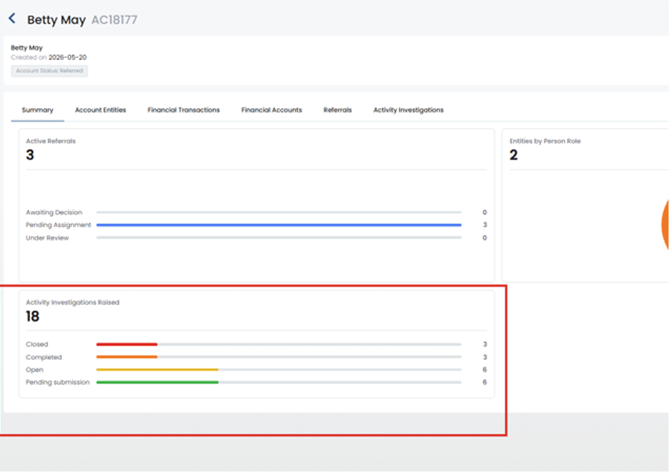
Account View Account Activity Investigation Widget
Users accessing the account view summary will now be shown a Activity Investigation widget showing all the Activity Investigations related to records on the account. This widget will only be shown to users if they have access to the Activity Investigation feature. Example:
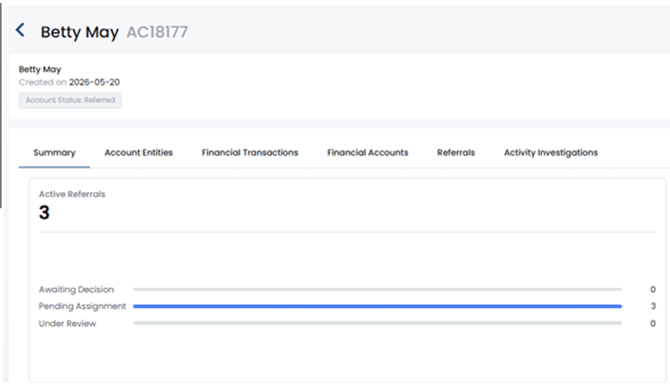
Account View Account Referrals Widget
Users accessing the account view summary will now be shown a Referrals widget, showing a
summary of all the Referrals within the account by status. Example:
Integrations
Various fixes and improvements have been made to improve data quality, resiliency and performance.
| Creditsafe & CreditorWatch Name Formatting |
Entity names now display in correct forename/surname format for clearer, more intuitive review. |
| DataZoo (APAC) DOB Mapping Fix | Corrected date-of-birth mapping for China passport checks to ensure accurate results. |
| Creditsafe Entity Mapping Fix | Resolved issues with null discovered entities to improve reliability of check outputs. |
| Cifas Long Surname Handling | Long surnames are now correctly processed, ensuring checks complete successfully without validation errors. |
| Veriff Journey Fixes | Fixed issues that could cause applicant journeys to become stuck, preventing workflow delays. |
| App Report Loading Improvements | Reports now load reliably across widgets for a more consistent experience. |
| Download Generation Fix | Restored the ability to generate downloads following internal watchlist activity |
| Due Diligence Reports Configuration Fix | Resolved incorrect values appearing in advanced configuration settings. |
| Internal Watchlist Upload Fixes | Resolved issues preventing uploads across environments, ensuring consistent functionality. |
| D&B Company Profile Widget Fix | Corrected display issues under specific configuration settings. |
| Date Validation Improvements | Fixed validation for moving in/out date fields to prevent invalid submissions. |